

Introduction
Setting up two external monitors with your laptop can instantly transform your workspace, giving you expansive screen real-estate to work smarter, multitask better, or play games with more immersion. This article walks you through everything you need to know starting from checking compatibility, choosing the right cables, to configuring displays and troubleshooting common issues so you set up your dual-monitor laptop system with confidence.
Who This Guide Is For?
This guide is created for anyone who uses a laptop professionals working remotely, students, gamers, content creators who wants to connect two monitors to a laptop and unlock a more efficient multi-screen experience. Whether you’re using Windows 11, Windows 10, a Apple MacBook Pro or Air, a Chromebook, or any other laptop model, this article will guide you clearly and authoritatively with expert-level insights grounded in universal best practices.
Check Laptop Video Output Capabilities
Identify available video ports
The very first step is to inspect your laptop’s physical ports (HDMI, DisplayPort, USB-C/Thunderbolt) and check your device’s specs. If your laptop has two independent video outputs, you can plug in each monitor directly. If it has only one, you’ll need a hub, dock or adapter. Reliable guides emphasise this as the foundational step.
Verify graphics card supports dual monitors
Even if two ports exist, the built-in GPU (integrated or dedicated) must support two external displays. For example, some notebooks only support one external monitor via certain ports, and rely on USB-to-HDMI for the second.
Check USB-C / Thunderbolt alt mode or MST support
Many modern laptops use USB-C or Thunderbolt for video output. If the port supports DisplayPort Alt Mode or MST (Multi-Stream Transport) you can drive multiple monitors. On Windows this is common; on macOS MST support is more limited.
Confirm monitor input types and cable compatibility
Make sure your monitors have the right inputs (HDMI, DisplayPort, USB-C) and your laptop ports/cables match. If mismatched, you may need adapters or a docking station. This avoids last-minute surprises when setting up.
Choose the Connection Method That Works Best
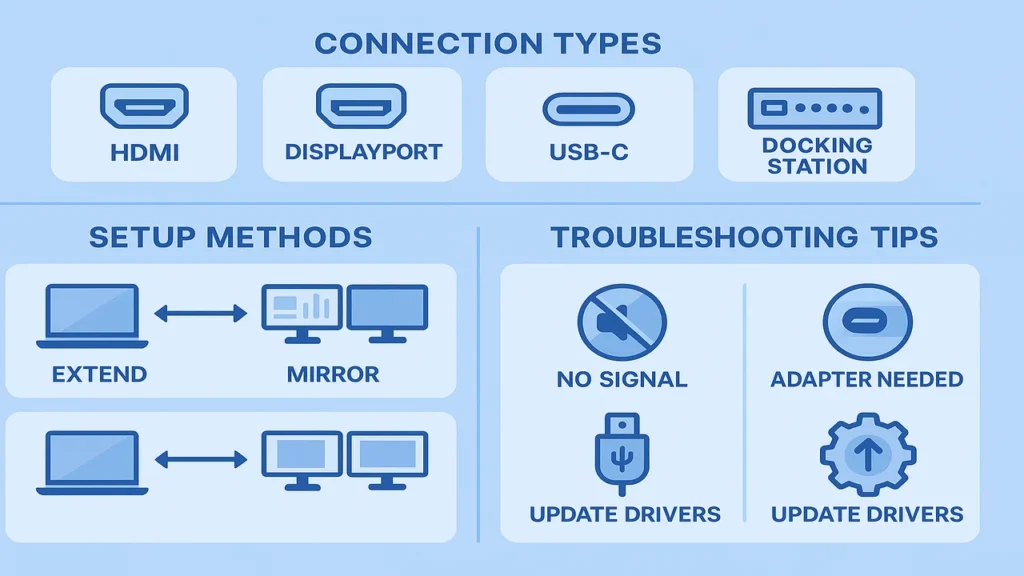
Direct connection via two video outputs
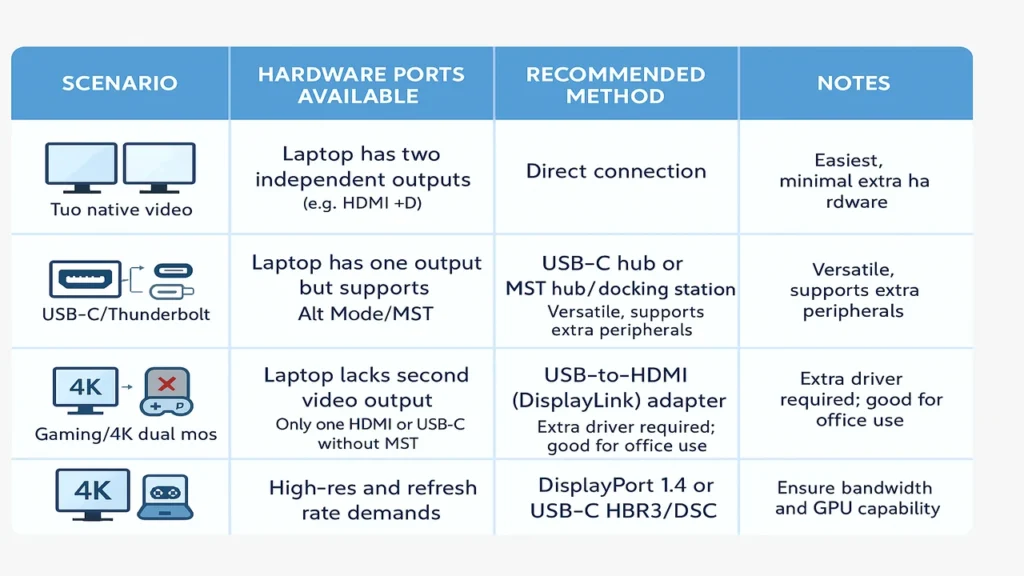
If your laptop has two outputs (for example one HDMI and one DisplayPort or USB-C), you can connect each monitor directly. This tends to give the most stable performance and is easiest to configure.
Use a USB-C/Thunderbolt docking station
When only one video port is available (or you want other ports too), a docking station with dual-monitor support is a powerful option. The dock connects via USB-C/Thunderbolt and presents multiple video outputs to monitors.
Use a USB-to-HDMI/DisplayLink adapter
If your laptop lacks second video output or MST, you can use a USB3 adapter incorporating DisplayLink technology to drive a second monitor. Windows and macOS support DisplayLink with drivers.
Daisy-chain via DisplayPort MST or MST hub
If your laptop and monitor support DisplayPort 1.2+ and MST, you can connect the laptop to one monitor, then daisy-chain to the second monitor. This uses fewer cables and is elegant but requires compatible hardware.
Configure Your Dual-Monitor Setup in Software
Set display mode (extend vs duplicate)
Once both monitors are connected, you need to select how they’ll behave. On Windows: go to Settings > System > Display > Multiple displays and select “Extend these displays” to use the two monitors as separate workspaces.
Arrange monitor positions and numbering
Drag the monitor icons to match their physical layout (left, right, above). Use the Identify button so you know which screen is which—this avoids confusion when moving windows between screens.
Adjust resolution and refresh rate
Ensure each monitor is running at its native resolution and optimal refresh rate. This ensures crisp text and smooth motion—especially important for productivity or gaming setups. Without correct settings you may get blurry visuals.
Set main display and taskbar location
In display settings you can choose which screen is “main” (where Start menu or Dock appears) and relocate taskbars accordingly. This allows your workflow to feel unified.
Tailored Guidance for Specific Operating Systems
Windows 10 and Windows 11 dual monitor setup
Windows provides built-in tools to detect and configure multiple monitors. Under Settings > System > Display you can detect new monitors, identify them, choose extend/duplicate, set resolution, and configure orientation.
macOS on MacBook Pro or MacBook Air
MacBooks (especially with Apple Silicon) often support only one external monitor unless using special hardware workarounds. Use System Settings (Displays) > Arrangement, drag displays to match layout, and optionally select Mirror Displays if you want the same image on all screens. Ensure your Mac supports dual external displays.
Chromebook dual external display setup
Chromebooks with USB-C video output can connect to one or more monitors depending on hardware. Check manufacturer documentation for dual-monitor support. Once connected, go to Settings > Displays to configure arrangement and mode.
Gaming laptop dual monitors for high refresh or 4K
For gaming setups, ensuring your laptop GPU/channel supports two high-resolution or high-refresh monitors is key. Using DisplayPort 1.4 or USB-C HBR3/DSC is often necessary for dual 4K 60 Hz or ultrawide monitors. Ensure your cables and ports are rated accordingly.
Troubleshooting Common Issues
Monitor not detected or no signal
If one monitor isn’t being detected, check that cables are securely connected, that the input source on the monitor is correct, and that the laptop has the required support for dual displays. Note: some laptops will not support two monitors via one HDMI port alone.
One port only and splitter doesn’t work
Using an HDMI splitter to split one port into two for “Extend” mode is generally not recommended because it duplicates rather than extends and may not be supported. Microsoft’s guidance suggests using a USB-to-HDMI converter or hub instead.
Poor resolution or refresh rate mismatch
If one monitor looks blurry, check that its resolution is set to native and refresh rate is appropriate. Using low-bandwidth ports or cheap adapters may limit performance. Especially important for dual high-res or high-refresh setups.
Cable type and bandwidth limitations
HDMI, DisplayPort and USB-C differ in bandwidth. For example, dual 4K 60 Hz may require DisplayPort 1.4 or USB-C with HBR3/DSC. Using older cables or ports can restrict resolution/refresh.
Driver or firmware issues
Ensure your laptop’s graphics drivers are up to date. If using a docking station or DisplayLink adapter, install required drivers. Some docks also need firmware updates.
Optimize Productivity and Ergonomics
Arrange displays for workflow
Place your most-used monitor directly in front of you, and the second monitor to the side for supporting apps, references, chat tools or dashboards. Ergonomics suggests top of the screens should be at eye-level to reduce strain.
Use dual monitors for focused multitasking
Research shows that using multiple displays can boost productivity significantly (for example, “dual-monitor” setups have been shown to increase task performance). Wikipedia
Use one screen for your primary work and the other for secondary resources.
Choose different size/resolution monitors wisely
You can absolutely mix monitor sizes and resolutions, but be mindful of how content flows between them. Set resolutions correctly, and consider aligning bottoms or tops to avoid awkward jump in eyesight when moving across.
Game or creative work across dual screens
For gamers or creators, you might have one monitor dedicated to your main display (game/render) and the second to monitoring tools, chat or asset libraries. Ensure your GPU can drive both at required refresh/resolution without bottleneck.
Comparative Setup Table
Conclusion
Connecting two monitors to your laptop can dramatically enhance your workflow, focus and enjoyment whether you’re working from home, gaming, or creating content. By verifying your laptop’s ports and GPU capabilities, selecting the right connection method (direct, dock, USB adapter, MST), correctly configuring your displays, and optimizing the ergonomic layout, you’ll achieve a seamless and powerful dual-monitor setup. With expert knowledge and a positive mindset, you’re now ready to take your workspace to the next level.
Must Visit: How to Factory Reset MacBook Without Password: A Complete Guide
Frequently Asked Questions
Can I connect two monitors to a laptop with only one HDMI port?
Yes — but you’ll likely need a USB-to-HDMI adapter or a docking station that adds a second output. A simple HDMI splitter may duplicate the same display rather than extend.
What ports do I need to connect two monitors to a laptop?
You need at least two video outputs (HDMI, DisplayPort, USB-C/Thunderbolt with Alt Mode) or one output plus a hub/adapter that provides a second. Confirm GPU support for dual monitors.
Is a docking station required to connect two monitors to a laptop?
Not always. If your laptop has two native video outputs, you can connect directly. A dock is required when your laptop has limited ports or you need additional peripherals.
Why is one of my monitors not detected when connecting two monitors to a laptop?
Possible causes include: port doesn’t support second display, incorrect input source, cable issue, driver outdated, or you’re using a splitter not suitable for “extend” mode. Check each accordingly.
How do I set up “Extend desktop” when I connect two monitors to a laptop?
In Windows: go to Settings > System > Display, then under Multiple displays select “Extend these displays”. On macOS: go to System Settings (Displays) > Arrangement and uncheck “Mirror Displays”.

My name is Nancy Rose, and I’m a passionate blogger at Techiwell.com, a platform dedicated to exploring technology, business, entertainment, and general topics. I strive to create engaging, insightful, and informative content to keep readers updated and inspired in our fast-changing world.